
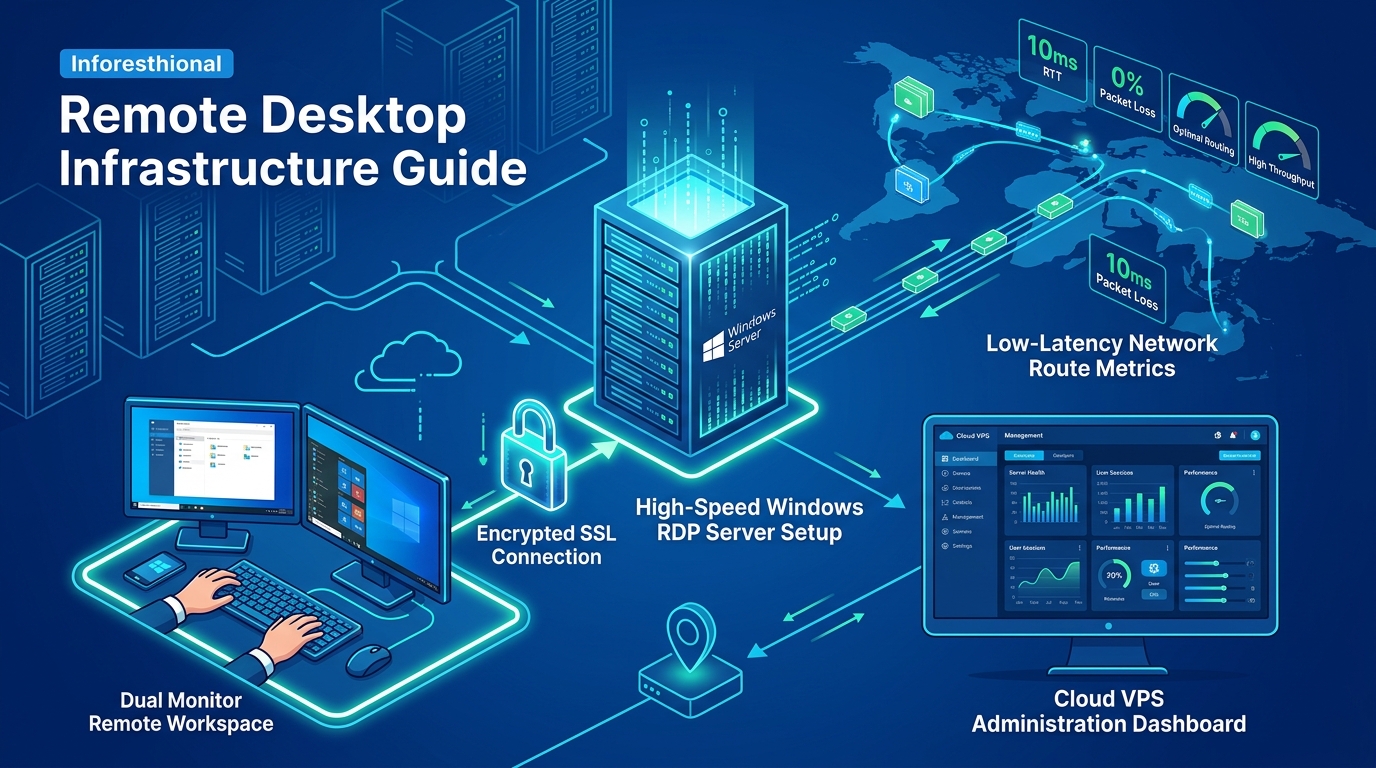
In the fast-paced digital landscape, scaling mobile operations is a significant challenge. Whether you’re managing dozens of social media accounts, running extensive app QA tests, or deploying game automation scripts, running these tasks on physical mobile devices is both costly and inefficient. The modern solution? An Automated Android Emulator Farm hosted on a high-performance Windows GPU RDP.
In this comprehensive guide, we’ll walk you through setting up a scalable emulator farm using popular software like BlueStacks or LDPlayer, optimizing it for maximum instance count, and leveraging the raw power of GPU-accelerated Remote Desktop Protocols.
Why a Windows GPU RDP for Emulator Farms?
Android emulators are notoriously resource-hungry. They require significant CPU cores for processing, substantial RAM to keep the Android OS responsive, and crucially, dedicated GPU resources for rendering the Android UI and processing OpenGL/DirectX instructions. Attempting to run more than a few instances on a standard, CPU-only VPS will result in severe lag, crashes, and frozen instances.
For serious scale—running 20, 50, or even hundreds of instances—you need the unmetered bandwidth, hardware virtualization support, and multi-core power provided by bare-metal Dedicated Servers in Pakistan equipped with dedicated NVIDIA or AMD GPUs. Transitioning to full Dedicated Servers ensures that your resources are entirely isolated, giving your emulators the unrestricted hardware access they need to run smoothly 24/7.
Step 1: Choosing the Right Emulator
For a farm environment, we need emulators that are lightweight, support multi-instance management, and offer command-line interfaces (CLI) for automation.
- LDPlayer: Highly recommended for farm setups. It is incredibly lightweight, has fantastic multi-instance synchronization features, and uses fewer system resources per instance compared to competitors.
- BlueStacks: The industry standard. BlueStacks 5 introduced significant memory usage reductions and “Eco Mode,” which drastically lowers CPU and GPU usage for background instances.
- MEmu Play: Another strong contender with excellent multi-instance support and macro recording capabilities.
For this guide, we will focus on LDPlayer due to its exceptional low-resource footprint.
Step 2: Preparing Your Windows GPU RDP
Before installing the emulators, ensure your server is primed for virtualization:
1. Enable Hardware Virtualization (VT-x/AMD-V)
Ensure that virtualization is enabled in your server’s BIOS. If you are renting a bare-metal server, this is usually enabled by default. You can verify this by opening Task Manager -> Performance -> CPU and checking if “Virtualization: Enabled” is present.
2. Update GPU Drivers
Android emulators rely heavily on the GPU. Ensure you have the latest NVIDIA Studio Drivers (or AMD equivalent) installed. Studio drivers offer better stability for long-running processes compared to Game Ready drivers.
3. Optimize Windows Server Settings
- Power Plan: Set to “High Performance”.
- Visual Effects: Navigate to Advanced System Settings -> Performance -> Settings, and select “Adjust for best performance”.
- Disable Sleep/Hibernation: Ensure the server never sleeps.
Step 3: Installing and Configuring LDPlayer
- Download and Install: Download the latest version of LDPlayer and install it on your RDP.
- Launch LDMultiPlayer: This is the manager used to create and configure multiple instances.
- Configure the Base Instance (Master Clone):
Before cloning, configure your master instance to minimize resource usage:
- Resolution: Set to the lowest acceptable resolution (e.g., 540x960 or even custom 240x432 for purely text-based apps).
- CPU/RAM: Allocate 1 Core and 1024MB or 2048MB of RAM depending on the app’s requirements.
- FPS: Limit the frame rate to 10-20 FPS. High FPS is unnecessary for automation and wastes GPU cycles.
- Audio: Disable audio in the emulator settings.
- Install Required Apps: Install your target applications (e.g., social media apps, testing tools) and your automation framework (like Tasker, AutoHotkey scripts communicating via ADB, or Appium).
Step 4: Cloning and Scaling
Once your master instance is perfectly configured, use the LDMultiPlayer tool to clone it.
Best Practices for Batch Cloning:
- Batch Create: Use the “Batch Clone” feature to create 5-10 instances at a time.
- Disk Management: Set instances to use “Small Disk Mode” if your apps don’t require much storage. This prevents virtual disk bloat.
- Network Bridges (Optional): If your tasks require distinct IP addresses for each instance, you can configure network bridging in LDPlayer and bind each instance to a different IP address routed to your server, or utilize proxy apps within each Android instance.
Step 5: Automating the Farm via ADB (Android Debug Bridge)
The true power of an emulator farm lies in automation. Emulators like LDPlayer expose ADB ports for each instance, allowing you to control them programmatically.
Locating ADB Ports
LDPlayer instances usually start their ADB ports at 5555 for instance 0, 5557 for instance 1, 5559 for instance 2, and so on.
Example Automation Script (Python)
You can use Python with the ppadb library to send commands to multiple instances simultaneously.
from ppadb.client import Client as AdbClient
import time

# Connect to ADB server
client = AdbClient(host="127.0.0.1", port=5037)
devices = client.devices()

if len(devices) == 0:
    print("No emulators attached")
    quit()

print(f"Connected to {len(devices)} emulators")

# Example: Open an app on all emulators simultaneously
for device in devices:
    # Replace with your app's package name
    device.shell("monkey -p com.example.targetapp -c android.intent.category.LAUNCHER 1")

time.sleep(5)

# Example: Simulate a tap at coordinates (X=300, Y=500)
for device in devices:
    device.shell("input tap 300 500")
Step 6: Resource Monitoring and Optimization
When running dozens of instances, monitoring is critical.
- Use Task Manager/Resource Monitor: Keep a close eye on RAM usage and GPU VRAM. If VRAM maxes out, emulators will crash or turn black.
- LDPlayer Optimization Settings: Utilize the “Multi-player Optimization” settings in LDMultiPlayer. Enable options like “Lower frame rate to reduce CPU usage” and “Virtual disk optimization”.
- Staggered Launching: Never launch all instances simultaneously. Use a script or the LDMultiPlayer batch feature to launch them with a 5-10 second delay between each to prevent CPU spikes.
Conclusion
Building an automated Android emulator farm transforms tedious mobile tasks into a highly efficient, scalable operation. By carefully configuring lightweight emulators like LDPlayer and deploying them on powerful hardware, you can achieve incredible concurrency. Remember, the foundation of a successful farm is the underlying infrastructure. Ensure you invest in robust, GPU-accelerated Dedicated Servers to guarantee the performance and stability your automated workflows demand.