
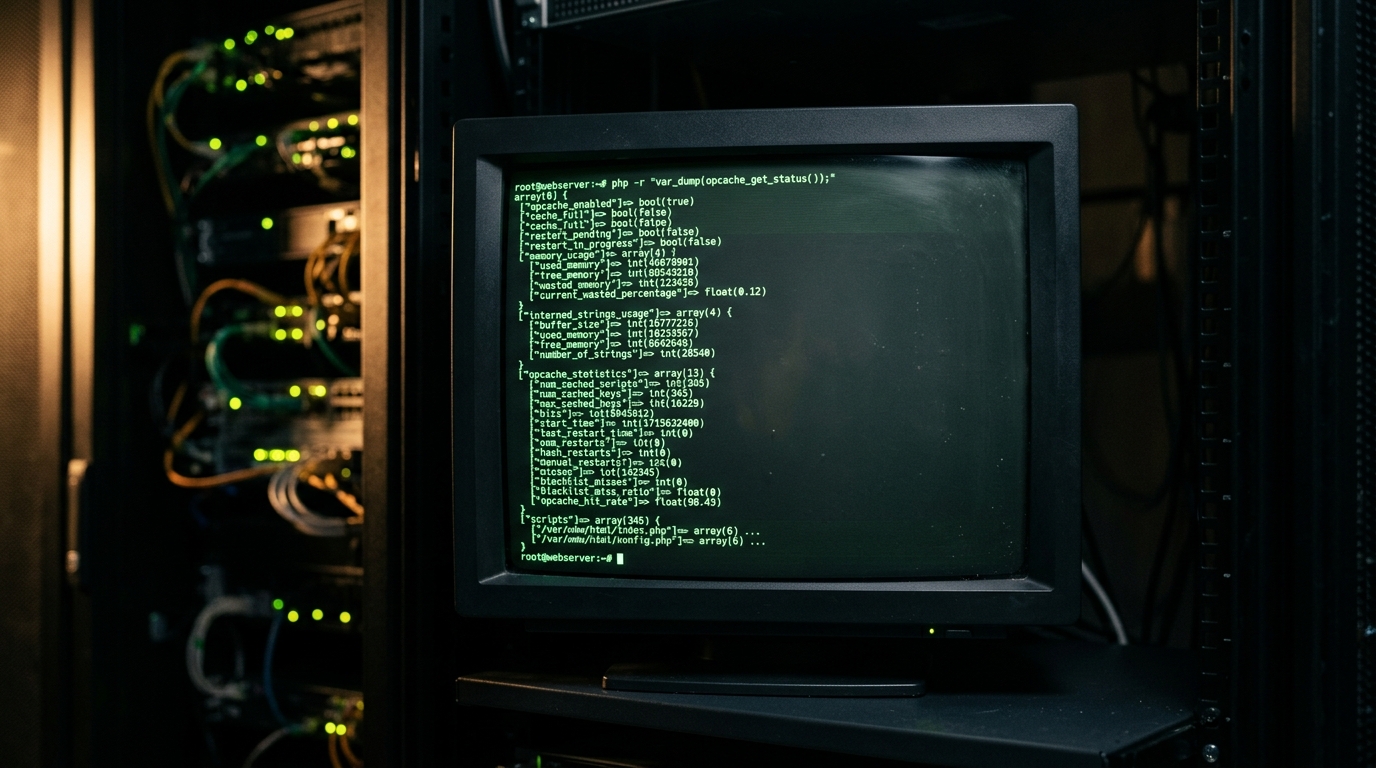
PHP’s OPcache is one of the most impactful performance accelerators available to WordPress hosting environments — but it is also one of the most misdiagnosed sources of intermittent, maddening failures. When OPcache’s shared memory segment becomes corrupt or exhausted, the symptoms are almost indistinguishable from plugin conflicts, database failures, or even hardware problems. This guide gives you the full diagnostic toolkit: what to look for in logs, exactly which metrics to pull, how to interpret them, and how to apply permanent fixes under a LiteSpeed + cPanel environment.
Understanding How OPcache Works (and How It Breaks)
PHP normally parses and compiles every .php file on every request. OPcache short-circuits this by storing the compiled bytecode (opcodes) in a shared memory segment (SHM) that all PHP worker processes access simultaneously.
The memory layout has three distinct regions:
| Region | php.ini Directive |
Default | Function |
|---|---|---|---|
| Bytecode store | opcache.memory_consumption |
128 MB | Stores compiled opcodes for each file |
| Interned strings buffer | opcache.interned_strings_buffer |
8 MB | Deduplicated string pool shared across workers |
| Max file slots | opcache.max_accelerated_files |
10,000 | Hash table slots for tracked PHP files |
When any of these three regions fill up, OPcache enters one of two modes:
- Graceful degradation — new files are compiled on-the-fly (slower, but safe)
- Corruption cascade — under high concurrency, a worker that fails mid-write to SHM can leave a partially-written bytecode entry that other workers then read, producing fatal errors that are completely non-deterministic
The second scenario is the silent killer of WordPress sites on shared LiteSpeed servers.
Symptom Taxonomy
Before you chase log files, map your symptoms to the probable failure mode:
| Symptom | Probable Cause |
|---|---|
PHP Fatal error: Cannot redeclare class Foo |
Stale or doubled bytecode entry in SHM |
PHP Fatal error: Allowed memory size exhausted during normal load |
interned_strings_buffer overflow releasing SHM lock |
| Site working, then intermittently blank white page | OPcache restart_in_progress = true, workers reading half-written entry |
| Code changes (plugin update) not reflected on site | validate_timestamps = 0 or incorrect UID for file ownership check |
Segmentation fault in PHP error log |
Corrupt opcode array dereference — immediate SHM corruption indicator |
LiteSpeed error log: Child process exited with signal 11 |
SIGSEGV from corrupt SHM; PHP process killed by OS |
opcache_get_status() showing cache_full = true and restart_pending = true |
Bytecode store full, graceful restart queued but blocked by active requests |
Step 1 — Pull the Live OPcache Status
SSH into your server as root and run a one-liner that avoids touching the web stack entirely:
php -r "var_export(opcache_get_status()); echo PHP_EOL;"Expected healthy output (abbreviated):
array (
  'opcache_enabled' => true,
  'cache_full' => false,
  'restart_pending' => false,
  'restart_in_progress' => false,
  'memory_usage' =>
  array (
    'used_memory' => 48234496,
    'free_memory' => 86081536,
    'wasted_memory' => 1048576,
    'current_wasted_percentage' => 0.78,
  ),
  'interned_strings_usage' =>
  array (
    'buffer_size' => 8388608,
    'used_memory' => 6291456,       # <--- 75% used — WARNING zone
    'free_memory' => 2097152,
    'number_of_strings' => 21400,
  ),
  'opcache_statistics' =>
  array (
    'num_cached_scripts' => 4812,
    'num_cached_keys' => 5389,
    'max_cached_keys' => 16229,
    'hits' => 8472918,
    'misses' => 4812,
    'blacklist_misses' => 0,
    'blacklist_miss_ratio' => 0,
    'opcache_hit_rate' => 99.94,    # <--- healthy
    'manual_restarts' => 2,         # <--- non-zero = past corruption events!
    'hash_restarts' => 0,
    'oom_restarts' => 1,            # <--- OOM restart detected!
  ),
Red flags to look for:
# Dangerous conditions — any of these warrant immediate action:
php -r "
\$s = opcache_get_status();
echo 'cache_full: '         . var_export(\$s['cache_full'], true)            . PHP_EOL;
echo 'restart_pending: '    . var_export(\$s['restart_pending'], true)        . PHP_EOL;
echo 'restart_in_progress: '. var_export(\$s['restart_in_progress'], true)    . PHP_EOL;
echo 'oom_restarts: '       . \$s['opcache_statistics']['oom_restarts']       . PHP_EOL;
echo 'hash_restarts: '      . \$s['opcache_statistics']['hash_restarts']      . PHP_EOL;
echo 'manual_restarts: '    . \$s['opcache_statistics']['manual_restarts']    . PHP_EOL;
echo 'hit_rate: '           . \$s['opcache_statistics']['opcache_hit_rate']   . PHP_EOL;
echo 'interned_used_pct: '  . round(
    \$s['interned_strings_usage']['used_memory'] /
    \$s['interned_strings_usage']['buffer_size'] * 100, 2
) . '%' . PHP_EOL;
"
oom_restarts > 0 is the single most important indicator — it means OPcache ran out of memory mid-operation and had to restart the SHM segment while workers were actively reading it.
Step 2 — Correlate with PHP Error Logs
On a cPanel/LiteSpeed server, PHP errors from each domain write to the domain’s dedicated log:
# Find all PHP error logs for a specific cPanel user:
find /home/USERNAME/logs/ -name "*.error" -newer /tmp -ls 2>/dev/null

# Or for the domain directly:
tail -n 200 /home/USERNAME/logs/DOMAIN.com.error | grep -i "opcache\|redeclare\|corrupt\|signal\|segfault"
Sample corrupt-SHM log entry:
[24-Sep-2026 08:14:33 UTC] PHP Fatal error:  Cannot redeclare
  class WP_Hook (previously declared in
  /home/USERNAME/public_html/wp-includes/class-wp-hook.php:0)
  in /home/USERNAME/public_html/wp-includes/class-wp-hook.php on line 0
Line 0 is the dead giveaway — it means the error was triggered inside OPcache when resolving a cached class, not from the actual source file. The source file line number is lost because the bytecode was read from corrupted SHM.
Check the LiteSpeed main error log for the SIGSEGV evidence:
grep -i "signal 11\|segfault\|exit code\|child.*exit" /usr/local/lsws/logs/error.log | tail -402026-09-24 08:14:31.123456 [STDERR] [12884] child process 12901 exited with signal 11 (core dumped)
2026-09-24 08:14:31.124200 [NOTICE] [12884] Spawning new PHP process to replace 12901Signal 11 = SIGSEGV (segmentation fault) — the PHP process tried to access unmapped memory in the OPcache SHM segment. LiteSpeed will auto-respawn the worker, masking the root cause.
Step 3 — Identify the Specific OPcache Configuration in Use
On cPanel multi-PHP environments, the php.ini that matters is not the global one. LiteSpeed LSAPI uses a per-version configuration:
# Find the active php.ini for PHP 8.2 under cPanel:
/opt/cpanel/ea-php82/root/usr/bin/php --ini | grep "Loaded Configuration"

# Expected output:
# Loaded Configuration File:         /opt/cpanel/ea-php82/root/etc/php.ini

# Also check for drop-in files that override the main ini:
ls -la /opt/cpanel/ea-php82/root/etc/php.d/ | grep opcache
# opcache.ini is typically at:
cat /opt/cpanel/ea-php82/root/etc/php.d/opcache.ini
Check what LiteSpeed’s LSAPI processes actually inherit at runtime (this can differ from CLI):
# Get OPcache config as seen by the web-serving PHP:
grep -i opcache /opt/cpanel/ea-php82/root/etc/php.ini
grep -i opcache /opt/cpanel/ea-php82/root/etc/php.d/opcache.ini
Important: cPanel’s
MultiPHP INI Editorin WHM applies changes to a per-user.htaccess-level override. These take precedence over the systemphp.ini. Always check WHM → MultiPHP INI Editor → Editor Mode → select PHP version to see the real effective values for a given account.
Step 4 — Audit the Wasted Memory and Wasted Percentage
OPcache tracks wasted memory — space from invalidated entries that can’t be reclaimed until a restart. When wasted memory crosses the opcache.max_wasted_percentage threshold (default: 5%), OPcache triggers an automatic SHM restart.
php -r "
\$s = opcache_get_status();
\$wasted = \$s['memory_usage']['wasted_memory'];
\$used   = \$s['memory_usage']['used_memory'];
\$total  = \$wasted + \$used + \$s['memory_usage']['free_memory'];
printf('Wasted: %.2f MB (%.2f%% of total SHM)' . PHP_EOL,
    \$wasted/1048576,
    \$wasted/\$total*100
);
"
If you’re seeing high wasted percentage on a busy WordPress site, it’s because plugin updates and WordPress auto-updates are invalidating cached files faster than they can be reclaimed. Under LiteSpeed with validate_timestamps=1 and a busy cPanel box, this is endemic.
Step 5 — The interned_strings_buffer Exhaustion Deep Dive
The interned strings buffer is frequently the hidden culprit. PHP interns (deduplicates) all string literals that appear in bytecode — function names, class names, string constants. On WordPress with 50+ plugins, the number of unique strings is enormous.
How to determine if you’re hitting the buffer limit:
php -r "
\$s = opcache_get_status();
\$isu = \$s['interned_strings_usage'];
printf('Buffer size:    %.2f MB' . PHP_EOL, \$isu['buffer_size']  / 1048576);
printf('Used memory:    %.2f MB' . PHP_EOL, \$isu['used_memory']  / 1048576);
printf('Free memory:    %.2f MB' . PHP_EOL, \$isu['free_memory']  / 1048576);
printf('String count:   %d'      . PHP_EOL, \$isu['number_of_strings']);
printf('Usage:          %.1f%%'  . PHP_EOL,
    \$isu['used_memory'] / \$isu['buffer_size'] * 100);
"
When free_memory approaches 0, PHP OPcache will begin refusing to intern new strings. This causes these strings to be allocated on the regular heap instead — the consequence is that the de-duplication guarantee breaks, and under concurrent workers you can get double-allocation race conditions that corrupt class tables.
Check PHP source for the error string:
When interned_strings_buffer is exhausted, PHP logs this in dmesg or the PHP error log:
dmesg | grep -i "php\|opcache" | tail -20
# Or:
journalctl -u lsws --since "1 hour ago" | grep -i "interned\|strings buffer"
Error you may see in the PHP source-level logs:
[OPcache] Cannot allocate interned string (out of buffer).This error is suppressed by default in production php.ini settings — another reason it’s so difficult to spot.
Step 6 — Apply Permanent Fixes
6a. Edit the OPcache Configuration
On cPanel + EA-PHP, the recommended approach is to edit the drop-in ini file:
# Back up first:
cp /opt/cpanel/ea-php82/root/etc/php.d/opcache.ini \
   /opt/cpanel/ea-php82/root/etc/php.d/opcache.ini.bak.$(date +%Y%m%d)

# Edit:
nano /opt/cpanel/ea-php82/root/etc/php.d/opcache.ini
Production-grade OPcache configuration for a plugin-heavy WordPress server:
[opcache]
; Enable OPcache
zend_extension=opcache.so
opcache.enable=1
opcache.enable_cli=0

; Memory — the big three
opcache.memory_consumption=256           ; MB — raise from default 128
opcache.interned_strings_buffer=64       ; MB — raise from default 8 (critical!)
opcache.max_accelerated_files=20000      ; slots — raise from default 10000

; Wasted memory reuse
opcache.max_wasted_percentage=10         ; allow up to 10% wasted before restart

; Validation — keep timestamps ON in WordPress environments
opcache.validate_timestamps=1
opcache.revalidate_freq=60               ; seconds — recheck on file change

; Stability under concurrent load
opcache.consistency_checks=0            ; set to 1 ONLY for debugging (high CPU cost)
opcache.huge_code_pages=1               ; use huge pages if kernel supports it (perf boost)
opcache.protect_memory=0                ; set to 1 only for debug — kills performance

; JIT (PHP 8.x only) — disable if you observe instability
opcache.jit=disable                     ; or 'tracing' for CPU-bound workloads
opcache.jit_buffer_size=0

; Logging
opcache.log_verbosity_level=1           ; 0=fatal, 1=errors, 2=warnings, 3=info, 4=debug
Why
interned_strings_buffer=64? A typical WordPress install with 40 active plugins has approximately 35,000–60,000 unique interned strings. At roughly 60–80 bytes average per string, the default 8 MB (8,388,608 bytes) is exhausted at about 100,000–140,000 bytes of strings — well below a full WordPress load. 64 MB provides a comfortable margin for even the most plugin-heavy installations.
6b. Enable Huge Pages (Optional but Recommended)
Linux huge pages reduce TLB pressure on OPcache’s large SHM segment:
# Check current huge page support:
grep -i hugepages /proc/meminfo

# Enable at runtime:
echo 128 > /proc/sys/vm/nr_hugepages

# Persist across reboots:
echo "vm.nr_hugepages = 128" >> /etc/sysctl.d/99-opcache-hugepages.conf
sysctl -p /etc/sysctl.d/99-opcache-hugepages.conf

# Verify:
grep HugePages /proc/meminfo
# HugePages_Total:     128
# HugePages_Free:      112
# Hugepagesize:       2048 kB
6c. Restart Services Correctly
After editing the ini file, you must restart LiteSpeed’s PHP processes — not just LiteSpeed itself. Simply reloading LiteSpeed with kill -USR1 does not flush the OPcache SHM:
# Option 1 — WHM LiteSpeed restart (safest for production):
# WHM → Plugins → LiteSpeed Web Server → Restart

# Option 2 — SSH graceful restart:
/usr/local/lsws/bin/lswsctrl restart

# Option 3 — cPanel scripts (will restart all PHP workers):
/scripts/restartsrv_httpd
# Or for LiteSpeed specifically:
/scripts/restartsrv_lsws

# Verify new OPcache config loaded:
php -r "echo opcache_get_configuration()['directives']['opcache.interned_strings_buffer'] / 1048576, ' MB' . PHP_EOL;"
# Expected: 64 MB
6d. Emergency OPcache Reset via WP-CLI (Zero-Downtime)
If you need to flush a corrupt SHM segment without restarting LiteSpeed (live production site):
# Navigate to the WordPress root for the affected site:
cd /home/USERNAME/public_html/

# Flush OPcache via WP-CLI eval (runs in the web SAPI context):
wp --allow-root eval 'opcache_reset(); echo "OPcache SHM flushed.\n";'

# Invalidate specific file (useful after plugin update):
wp --allow-root eval '
opcache_invalidate("/home/USERNAME/public_html/wp-includes/class-wp-hook.php", true);
echo "File invalidated.\n";
'
Note:
wp evalruns within the PHP process context that serves web requests, soopcache_reset()here will flush the same SHM segment used by LiteSpeed workers — unlike runningphp -r "opcache_reset();"from CLI, which runs in the CLI SAPI with a separate OPcache instance (or no OPcache at all ifopcache.enable_cli=0).
Step 7 — Validate the Fix with a Monitoring Script
Deploy this script to track OPcache health over time. Add it to a cron job:
# /usr/local/bin/opcache_monitor.sh
#!/bin/bash

PHP_BIN="/opt/cpanel/ea-php82/root/usr/bin/php"
LOG="/var/log/opcache_health.log"
ALERT_EMAIL="[email protected]"
TIMESTAMP=$(date '+%Y-%m-%d %H:%M:%S')

STATUS=$(${PHP_BIN} -r "
\$s = opcache_get_status();
echo implode(',', [
    (int)\$s['cache_full'],
    (int)\$s['restart_pending'],
    (int)\$s['restart_in_progress'],
    \$s['opcache_statistics']['oom_restarts'],
    \$s['opcache_statistics']['hash_restarts'],
    round(\$s['opcache_statistics']['opcache_hit_rate'], 2),
    round(\$s['interned_strings_usage']['used_memory'] /
          \$s['interned_strings_usage']['buffer_size'] * 100, 2),
]);
")

IFS=',' read -r CACHE_FULL RESTART_PENDING RESTART_PROG OOM_RESTARTS HASH_RESTARTS HIT_RATE ISB_PCT <<< "$STATUS"

echo "${TIMESTAMP} | cache_full=${CACHE_FULL} | oom_restarts=${OOM_RESTARTS} | hit_rate=${HIT_RATE}% | isb_used=${ISB_PCT}%" >> "${LOG}"

# Alert conditions:
if [[ "$CACHE_FULL" == "1" ]] || [[ "$OOM_RESTARTS" -gt 0 ]] || \
   (( $(echo "${ISB_PCT} > 85" | bc -l) )); then
    echo "OPcache alert at ${TIMESTAMP}: cache_full=${CACHE_FULL}, oom_restarts=${OOM_RESTARTS}, isb_used=${ISB_PCT}%" \
        | mail -s "OPcache Health Alert" "${ALERT_EMAIL}"
fi
chmod +x /usr/local/bin/opcache_monitor.sh
# Add to root crontab — check every 5 minutes:
echo "*/5 * * * * /usr/local/bin/opcache_monitor.sh" >> /var/spool/cron/rootStep 8 — LiteSpeed-Specific OPcache Pitfalls
Pitfall 1: Per-User PHP via .htaccess Overrides
cPanel users can place PHP INI directives in .htaccess. If a user has set a low opcache.memory_consumption in their .htaccess and you’ve just raised the system default, their site still uses the old value:
grep -r "opcache" /home/*/public_html/.htaccess 2>/dev/null
grep -r "opcache" /home/*/public_html/.user.ini 2>/dev/null
Remove or override any conflicting values here — .user.ini directives take precedence over system php.ini for user-mode PHP-FPM pools.
Pitfall 2: LSAPI vs PHP-FPM — Different OPcache Segments
LiteSpeed’s native LSAPI (mod_lsapi) uses a different SHM allocation strategy than PHP-FPM. With LSAPI, each virtual host can share an OPcache SHM segment across worker processes — but only if the workers run as the same Unix user. On cPanel, each domain runs as its own cPanel user account. This means:
- Each cPanel account gets its own OPcache SHM segment
- The
opcache.memory_consumptiondirective consumes RAM per account - A server with 50 cPanel accounts, each with PHP 8.2, can allocate up to
50 × 256 MB = 12.8 GBof OPcache SHM
Check the actual SHM consumption:
# List all OPcache SHM segments and their sizes:
ipcs -m | grep -v "^--\|key\|Semaphore" | awk '{print $5/1048576 " MB\t" $0}'

# Or via /proc:
cat /proc/sysvipc/shm | awk 'NR>1 {sum+=$5} END {print "Total OPcache SHM: " sum/1048576 " MB"}'
Tune opcache.memory_consumption conservatively for shared hosting scenarios — 128 MB per account is often sufficient if interned_strings_buffer is properly sized.
Pitfall 3: validate_timestamps=0 in Production
Some “performance guides” recommend disabling timestamp validation. Never do this on a WordPress server. WordPress auto-updates, plugin updates, and theme modifications all modify .php file timestamps. With validate_timestamps=0, these changes will never be reflected until a manual OPcache flush — and your clients will see a broken site after every WordPress core update.
# Audit all cPanel PHP configs for this dangerous setting:
grep -r "validate_timestamps\s*=\s*0" \
    /opt/cpanel/ea-php*/root/etc/ \
    /home/*/public_html/.user.ini \
    /home/*/public_html/.htaccess 2>/dev/null
Step 9 — Advanced: OPcache File Cache as a Corruption Safety Net
PHP 7.4+ supports a file-based secondary cache for OPcache (opcache.file_cache). When enabled, OPcache writes compiled bytecode to disk. On a SHM corruption event, PHP can fall back to the file cache and continue serving requests without a fatal error:
; In your opcache.ini:
opcache.file_cache=/var/cache/opcache
opcache.file_cache_only=0            ; 0 = use both SHM + file cache
opcache.file_cache_consistency_checks=1
# Create the cache directory with correct permissions:
mkdir -p /var/cache/opcache
chmod 777 /var/cache/opcache # writeable by all PHP worker UIDs
# Verify after restart:
ls -la /var/cache/opcache/
# You should see per-PHP-version subdirectories appear as files are cachedThis acts as a soft corruption recovery mechanism — if SHM is wiped by an OOM restart, the file cache is still valid and PHP can serve from it while SHM repopulates, eliminating the “white screen of death” window.
Choosing the Right Server for OPcache-Intensive WordPress Workloads
OPcache SHM is allocated from RAM. On shared hosting environments, the per-account SHM allocation is constrained by the total available physical memory. If you’re running a high-traffic WordPress operation — a WooCommerce store, a news site, a multi-site network — and you’re constantly hitting OPcache limits, the underlying issue is often insufficient dedicated RAM per PHP worker.
Migrating to a Dedicated Server eliminates resource contention entirely: you control the opcache.memory_consumption globally, there are no neighboring accounts consuming SHM, and you can allocate multiple gigabytes to OPcache without penalty.
For businesses in Pakistan running mission-critical WordPress infrastructure, Dedicated Servers in Pakistan offer locally-routed, low-latency connectivity — ensuring that the PHP workers, OPcache SHM, and your MariaDB server all reside on the same physical host, minimising the inter-process communication overhead that exacerbates OPcache exhaustion under load.
Quick Reference: OPcache Diagnostic Cheatsheet
# 1. Live health snapshot (CLI-safe wrapper — reads FCGI socket if available):
php -r "print_r(opcache_get_status());" 2>/dev/null || echo "OPcache not available in CLI"

# 2. Check for corruption indicators:
php -r "\$s=opcache_get_status(); var_dump(\$s['cache_full'],\$s['restart_pending'],\$s['restart_in_progress']);"

# 3. Count OOM restarts (non-zero = past corruption):
php -r "echo opcache_get_status()['opcache_statistics']['oom_restarts'];"

# 4. Interned strings buffer pressure:
php -r "\$i=opcache_get_status()['interned_strings_usage']; printf('%.1f%% used'.\PHP_EOL, \$i['used_memory']/\$i['buffer_size']*100);"

# 5. Hit rate (should be >98%):
php -r "echo opcache_get_status()['opcache_statistics']['opcache_hit_rate'],'%';\n"

# 6. Number of cached scripts (compare to max_accelerated_files):
php -r "echo opcache_get_status()['opcache_statistics']['num_cached_scripts'];"

# 7. Flush SHM (web SAPI context required — use WP-CLI):
wp --allow-root eval 'opcache_reset(); echo "done\n";'

# 8. Verify config loaded:
php -r "print_r(opcache_get_configuration()['directives']);"

# 9. Invalidate one file and force recompile:
php -r "opcache_invalidate('/home/USER/public_html/wp-config.php', true);"

# 10. Restart LiteSpeed PHP workers (cPanel):
/scripts/restartsrv_lsws
Summary
PHP OPcache corruption on LiteSpeed + cPanel WordPress servers almost always traces back to one of three root causes:
interned_strings_buffertoo small — the default 8 MB is inadequate for any modern WordPress install with more than ~15 pluginsmemory_consumptiontoo small — 128 MB fills quickly on plugin-heavy sites, triggering OOM restarts that corrupt in-flight SHM readsmax_accelerated_filestoo small — once the file slot table is full, new PHP files are compiled fresh every request, increasing CPU load and causing non-deterministic caching
The fix is surgical and permanent: raise interned_strings_buffer to 64 MB, memory_consumption to 256 MB, and max_accelerated_files to 20,000. Enable opcache.file_cache as a corruption safety net, and deploy the monitoring script to catch regressions before they become customer-facing outages.
OPcache is not a “set and forget” component on busy WordPress servers — it is a dynamic subsystem that must be actively monitored and tuned as your site grows.