
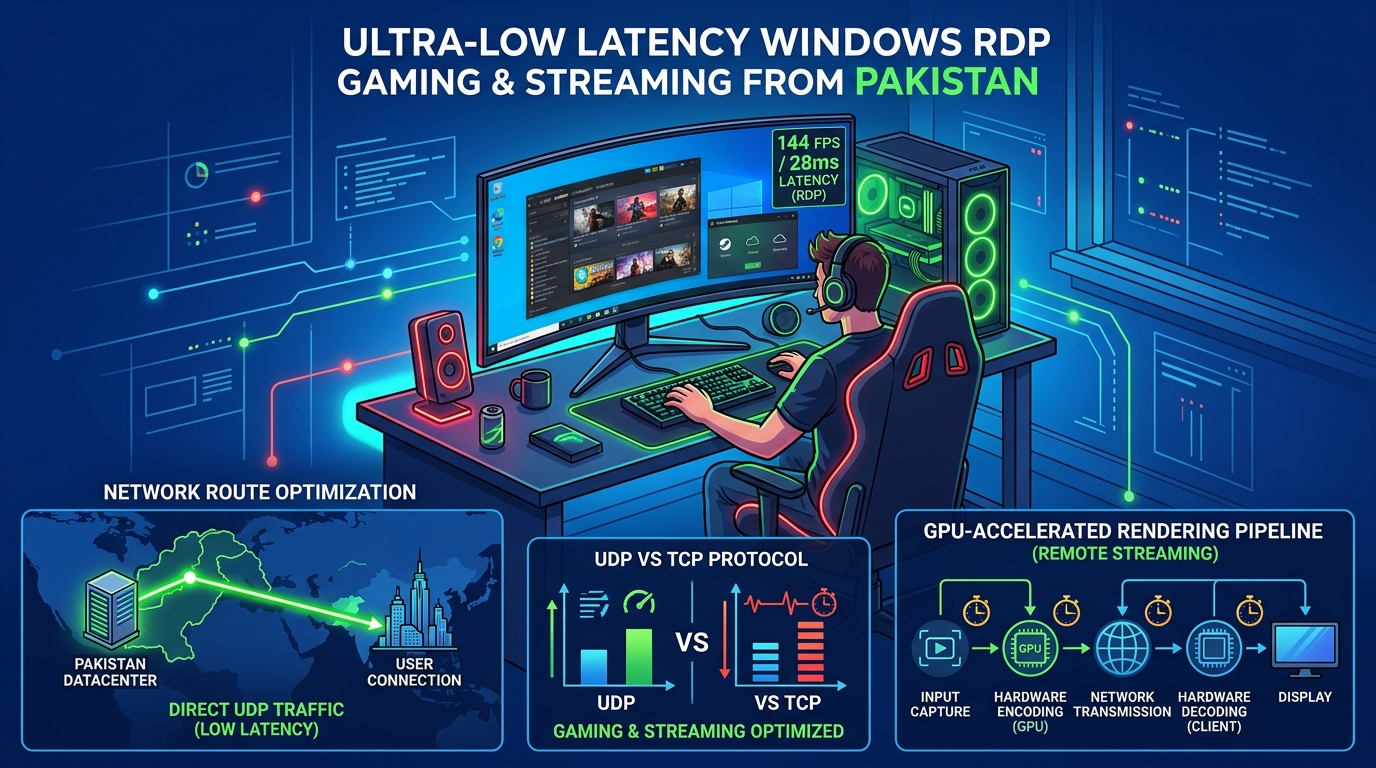
The esports and digital media landscape in Pakistan is experiencing exponential expansion. From multi-tiered national championship tournaments in PUBG Mobile, Valorant, Counter-Strike 2, Tekken 8, and Free Fire to international corporate summits, live podcasts, and 24/7 gaming channels, broadcasting teams face rigorous production requirements. Delivering crystal-clear 1080p60 or 1440p60 broadcasts with real-time multi-camera switching, dynamic lower-thirds, instant replay buffers, and multi-track audio commentary requires robust, fault-tolerant infrastructure.
However, running a high-tier live broadcast pipeline from a local studio or home setup in Karachi, Lahore, Islamabad, or Rawalpindi presents formidable operational challenges:
- Broadband Upload Asymmetry & ISP Packet Jitter: Residential and tier-2 business fiber lines in Pakistan (PTCL, Nayatel, StormFiber, Transworld) frequently suffer from severe upload throttling, bufferbloat, and random evening routing congestion. A momentary 5% packet drop over traditional RTMP destroys broadcast frame rates, resulting in buffering for thousands of live viewers.
- Carrier-Grade NAT (CGNAT) Blocking Inbound Feeds: Most Pakistani internet service providers put consumer and small-business connections behind CGNAT pools without public IPv4 addresses. This makes direct ingestion of remote observer feeds, caster camera feeds, and mobile gameplay streams impossible without complex port-forwarding or reverse proxies.
- Power Grid Vulnerability & UPS Voltage Fluctuations: Sustained multi-hour tournament broadcasts push dual-PC capture rigs to 600W–1000W of power consumption. Grid outages, inverter switchover latency, and low voltage drops often trigger CUDA hardware resets, blue screens, or unexpected stream dropouts mid-finals.
- Thermal Throttling & Hardware Encoding Saturation: Local workstations running simultaneous game capture, 4-camera NDI decoding, Discord caster voice bridges, and dual-canvas H.264/AV1 encoding quickly encounter thermal throttling and encoder lag during hot summer conditions.
The modern solution deployed by leading global broadcast networks and premier South Asian tournament organizers is the Remote Cloud Broadcast Engine: deploying a Dedicated GPU Windows RDP / High-Performance VPS Workstation hosted in high-speed, tier-3 datacenters with symmetric gigabit networking, dedicated clean IPv4 addresses, and unthrottled NVIDIA NVENC/AV1 silicon.
In this deep architectural blueprint, we detail how to design, configure, and operate an enterprise-grade remote broadcast workstation on a Nextgen GPU Windows RDP server.
1. End-to-End System Architecture & Ingestion Topology
Rather than requiring casters, players, and production directors to transmit raw, heavy video streams directly between domestic connections, all video sources, camera feeds, dynamic overlays, and audio submixes are routed to an intermediate Dedicated Cloud Broadcast Hub.
The cloud RDP server acts as the primary switcher, rendering engine, instant replay generator, and multi-RTMP restreamer.
flowchart TD
    subgraph Local_Pakistan_Sources ["Local Remote Contributors (Pakistan ISPs)"]
        A1["Tournament Observer (Karachi - Nayatel)"] -- "SRT Feed (H.264/1080p60)" --> T
        A2["Play-by-Play Caster (Lahore - StormFiber)"] -- "VDO.Ninja / WebRTC (Low Latency)" --> T
        A3["Color Analyst (Islamabad - PTCL Fiber)"] -- "VDO.Ninja / Discord Intercom" --> T
        A4["Mobile Player Feeds (USB-C Capture)"] -- "NDI HX3 over Tailscale" --> T
    end

    subgraph Mesh_Network ["Zero-Trust Encrypted Mesh Layer"]
        T["Tailscale / WireGuard Private Overlay Network\n(Bypasses CGNAT & ISP Filtering)"]
    end

    subgraph Cloud_RDP ["Nextgen Dedicated GPU Windows RDP Server"]
        T --> B1["SRT Listener & NDI Bridge"]
        B1 --> B2["OBS Studio 31.x 64-Bit Core"]
        B3["Virtual Audio Cable (Mix-Minus Router)"] <--> B2
        B4["RAM-Disk Replay Buffer (32GB DDR5)"] <--> B2
        B2 --> B5["NVIDIA NVENC Dual Hardware Encoders\n(AV1 / NVENC H.264 @ 12,000 Kbps)"]
    end

    subgraph CDN_Distribution ["10 Gbps Symmetric Uplink Distribution"]
        B5 --> C1["YouTube Live (Primary & Backup RTMP)"]
        B5 --> C2["Twitch TV (Direct Ingestion)"]
        B5 --> C3["Kick.com (Direct SRT/RTMP)"]
        B5 --> C4["Facebook Gaming (Secure RTMPS)"]
    end

    subgraph Operator_Control ["Remote Broadcast Director"]
        D1["Director / TD (Parsec / Moonlight Low-Latency Stream)"] -. "60 FPS Visual Control" .-> B2
    end
Protocol Comparison for Remote Live Ingestion
Choosing the right transport protocol between remote talent across Pakistan and the cloud RDP server is critical for zero-frame-loss broadcasting:
| Protocol | Typical Latency | Packet Loss Tolerance | CGNAT Traversal | Overhead | Ideal Production Use Case |
|---|---|---|---|---|---|
| SRT (Secure Reliable Transport) | 80 ms – 200 ms | Extreme (up to 25% loss recovery via ARQ) | Native via Caller/Listener over Mesh | Low | Primary gameplay observer feeds & high-bitrate cameras |
| NDI HX3 / NDI 6 | 30 ms – 70 ms | Moderate (Requires clean LAN / WireGuard) | Requires Private Mesh IP (Tailscale) | Medium | Local studio LAN sub-mixes & mobile screen mirrors |
| VDO.Ninja (WebRTC) | 40 ms – 100 ms | High (Dynamic Bitrate Adaptation) | Automatic STUN/TURN traversal | Low | Remote casters, facecams, and talk-show panelists |
| RTMP (Legacy) | 1,500 ms – 3,000 ms | Poor (Stalls & buffers upon dropped packets) | Requires Port Forwarding / NAT Punch | Very Low | Final restream egress to YouTube/Twitch/Kick |
2. Windows Server Latency Optimization & GPU Acceleration
Standard remote desktop servers default to power-saving profiles, audio compression, and virtual display drivers capped at 30 FPS. For real-time 60 FPS broadcast production and instant replay control, the Windows environment must be tuned for hardware rendering and real-time process priority.
Disabling Windows Power Throttling & Network Throttling Index
Execute the following PowerShell script with elevated Administrator privileges on your Nextgen Windows RDP Workstation to eliminate thread scheduling jitter and uncap the multimedia network stack:
# Disable Network Throttling for Multimedia and Real-time UDP Streams
Set-ItemProperty -Path "HKLM:\SOFTWARE\Microsoft\Windows NT\CurrentVersion\Multimedia\SystemProfile" -Name "NetworkThrottlingIndex" -Value 0xFFFFFFFF -Type DWord
Set-ItemProperty -Path "HKLM:\SOFTWARE\Microsoft\Windows NT\CurrentVersion\Multimedia\SystemProfile" -Name "SystemResponsiveness" -Value 0 -Type DWord

# Configure High-Priority Audio and Video Scheduling
New-Item -Path "HKLM:\SOFTWARE\Microsoft\Windows NT\CurrentVersion\Multimedia\SystemProfile\Tasks\Games" -Force | Out-Null
Set-ItemProperty -Path "HKLM:\SOFTWARE\Microsoft\Windows NT\CurrentVersion\Multimedia\SystemProfile\Tasks\Games" -Name "GPU Priority" -Value 8 -Type DWord
Set-ItemProperty -Path "HKLM:\SOFTWARE\Microsoft\Windows NT\CurrentVersion\Multimedia\SystemProfile\Tasks\Games" -Name "Priority" -Value 6 -Type DWord
Set-ItemProperty -Path "HKLM:\SOFTWARE\Microsoft\Windows NT\CurrentVersion\Multimedia\SystemProfile\Tasks\Games" -Name "Scheduling Category" -Value "High" -Type String

# Disable Nagle's Algorithm for Ultra-Low Latency Packet Acknowledgment
$Interfaces = Get-ChildItem "HKLM:\SYSTEM\CurrentControlSet\Services\Tcpip\Parameters\Interfaces"
foreach ($Interface in $Interfaces) {
    Set-ItemProperty -Path $Interface.PSPath -Name "TcpAckFrequency" -Value 1 -Type DWord -ErrorAction SilentlyContinue
    Set-ItemProperty -Path $Interface.PSPath -Name "TCPNoDelay" -Value 1 -Type DWord -ErrorAction SilentlyContinue
}

Write-Host "Windows Low-Latency Network & Process Scheduling applied successfully." -ForegroundColor Green
Directing OBS Studio to Native Discrete GPU Silicon
In headless Windows RDP environments, OBS Studio may inadvertently initialize against the Microsoft Basic Render Driver. Ensure that hardware Direct3D 11 acceleration is forced to the NVIDIA GPU:
:: Enable Hardware-Accelerated GPU Scheduling (HAGS)
reg add "HKLM\SYSTEM\CurrentControlSet\Control\GraphicsDrivers" /v HwSchMode /t REG_DWORD /d 2 /f

:: Force OBS Studio 64-bit to High Performance Discrete GPU
reg add "HKCU\Software\Microsoft\DirectX\UserGpuPreferences" /v "C:\Program Files\obs-studio\bin\64bit\obs64.exe" /t REG_SZ /d "GpuPreference=2;" /f
3. Zero-Trust Ingestion Setup: Tailscale Mesh & SRT Caller/Listener
Because Pakistani ISPs assign non-routable dynamic CGNAT addresses (e.g., 100.64.x.x or 10.x.x.x), standard OBS incoming IP connections fail without open firewall ports. Deploying Tailscale (WireGuard-based zero-configuration mesh) assigns a private, static 100.x.y.z IP to both the remote casters and the cloud RDP server, establishing end-to-end encrypted peer-to-peer UDP channels.
[Observer PC: 100.84.12.30] =====(WireGuard Encrypted Tunnel)=====> [GPU RDP: 100.115.45.90:9000]Configuring the OBS SRT Listener on the GPU RDP
In the cloud RDP instance running OBS Studio:
- Add a new Media Source in OBS Studio.
- Uncheck Local File.
- In the Input field, specify the SRT Listener URI:
srt://100.115.45.90:9000?mode=listener&latency=150&rcvbuf=12058624&buffering=1 - In the Input Format field, enter
mpegts.
SRT Buffer Sizing Formula for Pakistani ISP Connections
To prevent dropped packets during transient ISP jitter spikes, set the SRT latency buffer using this production formula:
$$\text{SRT Latency Buffer (ms)} = (\text{Round Trip Time (RTT)} \times 3) + \text{Jitter Overhead}$$
- Example: Karachi (Nayatel) to Frankfurt/UAE Datacenter RDP = 35 ms RTT.
- $\text{Buffer} = (35 \times 3) + 45 = \mathbf{150\text{ ms}}$.
- If transmitting over domestic PTCL ADSL/VDSL lines with high jitter (70 ms RTT):
- $\text{Buffer} = (70 \times 3) + 60 = \mathbf{270\text{ ms}}$.
Observer OBS Configuration (Broadcaster / Ingestion Client)
The tournament observer in Pakistan configures their local OBS Studio under Settings > Stream:
- Service: Custom…
- Server:
srt://100.115.45.90:9000?mode=caller&latency=150 - Stream Key: (Leave empty or use passphrase if stream encryption is enabled)
4. Multi-Track Mix-Minus Audio Engineering & Intercom
One of the most complex hurdles in esports broadcasting is Audio Echo and Mix-Minus. When remote casters speak on Discord or VDO.Ninja, they must hear:
- Game sound effects (PUBG gunfire, Valorant footsteps) at full fidelity.
- Their co-caster’s voice in real time.
- The director/producer’s talkback cues.
They must never hear their own voice looped back through the stream.
graph LR
    subgraph Audio_Inputs ["Incoming Cloud Audio"]
        G["Observer Game Sound"] --> M["OBS Master Audio Bus"]
        C1["Caster 1 (Karachi)"] --> M
        C2["Caster 2 (Lahore)"] --> M
        D["Director Intercom"] --> T["Talkback Bus (Non-Broadcast)"]
    end

    subgraph Virtual_Cables ["VB-Audio Virtual Matrix"]
        M --> V1["Cable-A (Stream Master 320kbps AAC)"]
        G --> V2["Cable-B (Caster Return Monitor)"]
        C1 --> V2
        C2 --> V2
        T --> V2
    end

    subgraph Monitoring ["Caster Earphones"]
        V2 --> P["Caster Return Mix (Zero Echo)"]
    end
Setting up Virtual Audio Cables via PowerShell on Windows RDP
Deploy VB-Audio Virtual Cable interfaces silently:
# Automated Installation of Virtual Audio Cables on Windows RDP
$InstallerUrl = "https://download.vb-audio.com/Download_VAC/VBCABLE_Driver_Pack43.zip"
$ZipPath = "$env:TEMP\VBCABLE_Driver.zip"
$ExtractPath = "$env:TEMP\VBCABLE_Driver"

Invoke-WebRequest -Uri $InstallerUrl -OutFile $ZipPath
Expand-Archive -Path $ZipPath -DestinationPath $ExtractPath -Force

# Silent 64-bit Driver Setup
Start-Process -FilePath "$ExtractPath\VBCABLE_Setup_x64.exe" -ArgumentList "-i -h" -Wait -Verb RunAs
Write-Host "Virtual Audio Cable drivers deployed. Configure Sound Control Panel default endpoints." -ForegroundColor Green
VDO.Ninja High-Quality WebRTC Talent Routing
For remote casters with webcams:
- Generate an invite link on VDO.Ninja with custom audio parameters:
https://vdo.ninja/?push=CasterKarachi&webcam&quality=0&bitrate=4000&stereo=1&audioquality=2 - In OBS Studio on the RDP server, add a Browser Source:
- URL:
https://vdo.ninja/?view=CasterKarachi&stereo=1&cleanoutput - Control Audio via OBS: Checked
- Audio Output Mode: Capture Audio Only (Multi-Track 1 & 2)
- URL:
5. Hardware-Accelerated NVENC / AV1 Encoding Matrix
The GPU Windows RDP instance handles the demanding final stage: encoding the master 1080p/1440p canvas into multiple bitrates and protocols without exhausting CPU cores.
+-------------------------------------------------------------------------------+
|                       OBS Master Rendering Canvas                             |
|                        1920x1080 @ 60.00 FPS (NV12)                           |
+-------------------------------------------------------------------------------+
                                      |
         +----------------------------+----------------------------+
         |                                                         |
         v                                                         v
+-----------------------------+                           +-----------------------------+
|    NVIDIA NVENC (Encoder 0) |                           |    NVIDIA NVENC (Encoder 1) |
|   Codec: H.264 (CBR 9000k)  |                           |     Codec: AV1 (CBR 6000k)  |
|  Profile: High / P6 Slower  |                           |  Profile: Main / P5 Fast    |
|   Target: YouTube & Twitch  |                           |   Target: Kick & Archives   |
+-----------------------------+                           +-----------------------------+
Production Encoder Settings Matrix
| Parameter | Twitch / Facebook Gaming (H.264) | YouTube Live (AV1 / HEVC) | Kick.com (H.264 / SRT) |
|---|---|---|---|
| Encoder | NVIDIA NVENC H.264 |
NVIDIA NVENC AV1 or HEVC |
NVIDIA NVENC H.264 |
| Rate Control | CBR (Constant Bitrate) | CBR (Constant Bitrate) | CBR (Constant Bitrate) |
| Bitrate | 8,000 Kbps | 14,000 Kbps (Enhanced Quality) | 9,500 Kbps |
| Keyframe Interval | 2 s (Fixed) |
2 s (Fixed) |
2 s (Fixed) |
| Preset | P6: Slower (Better Quality) |
P5: Slow (Good Quality) |
P6: Slower |
| Tuning | High Quality |
High Quality |
Low Latency |
| Multipass Mode | Two Passes (Quarter Resolution) |
Two Passes (Quarter Resolution) |
Single Pass |
| Look-ahead | Checked (16 Frames) |
Checked | Unchecked (Reduces VRAM latency) |
| Psycho Visual Tuning | Checked | Checked | Checked |
| Max B-Frames | 2 |
2 |
1 |
Setting Up Multi-RTMP Restreaming Without Multiplying Bandwidth
By utilizing the OBS-Multi-RTMP plugin (by SoraYuki), the cloud server encodes the video stream once on the NVENC chip and distributes identical bitstream copies across all target CDNs simultaneously over the datacenter’s symmetric 1 Gbps port.
[OBS NVENC Single Pass Encode: 9000 Kbps]
       ├──> Push to YouTube Live RTMP (Upload: 9 Mbps)
       ├──> Push to Twitch TV RTMP    (Upload: 9 Mbps)
       ├──> Push to Kick.com RTMP     (Upload: 9 Mbps)
       └──> Push to Facebook RTMPS    (Upload: 9 Mbps)
Total Cloud Egress: 36 Mbps (Negligible on a 1 Gbps Datacenter Link)
If attempted from a domestic Pakistani fiber connection, pushing 36 Mbps upstream would saturate the ISP upload ceiling and cause immediate broadcast degradation. On a Nextgen Cloud Server, this consumes less than 4% of available interface throughput.
6. RAM-Disk Instant Replay Buffer Architecture
Esports tournaments demand rapid 10-second and 30-second instant replays following clutches, team wipes, and headshots. Writing continuous high-bitrate video clips to standard mechanical drives or shared storage causes disk queue bottlenecks and dropped broadcast frames.
On a high-memory GPU RDP server (32GB or 64GB RAM), configure an instant replay buffer directly in volatile DDR5 memory:
sequenceDiagram
    autonumber
    participant Obs as Observer Game Feed
    participant OBS_Core as OBS Replay Buffer (In-Memory)
    participant Replay_Scene as Instant Replay Scene (Stinger Transition)
    participant Master as Master Program Output

    Obs->>OBS_Core: 1080p60 Raw Frame Ingestion
    OBS_Core->>OBS_Core: Continuous 30-Second Rolling Cache in RAM
    Note over OBS_Core: "Hotkey F9 / StreamDeck Triggered"
    OBS_Core->>Replay_Scene: Export MP4 to RAM-Disk (Z:\replays\clutch.mp4)
    OBS_Core->>Master: Fire Stinger Wipe + Playback at 80% Speed
    Master-->>Master: Master Stream Broadcast Continues Seamlessly
OBS Replay Buffer Configuration Settings:
- Settings > Output > Replay Buffer: Check Enable Replay Buffer.
- Maximum Replay Time:
30seconds. - Maximum Memory Allocation:
4096 MB(DDR5 RAM). - Filename Formatting:
Replay_%CCYY-%MM-%DD_%hh-%mm-%ss - Directory:
Z:\InstantReplays\(Mounted ImDisk Virtual RAM Disk).
7. Automated Disaster Recovery & Watchdog Automation
Unforeseen network spikes or third-party plugin exceptions should never permanently terminate a live championship broadcast. Implement an automated PowerShell Watchdog service that continuously monitors the OBS process, CPU/GPU temperature, and stream heartbeat.
Save the following production script as C:\BroadcastAutomation\StreamWatchdog.ps1:
# Nextgen Broadcast Stream Watchdog & Auto-Healer
$OBSPath = "C:\Program Files\obs-studio\bin\64bit\obs64.exe"
$WorkingDir = "C:\Program Files\obs-studio\bin\64bit"
$LogFile = "C:\BroadcastAutomation\watchdog_log.txt"

function Write-Log($message) {
    $timestamp = Get-Date -Format "yyyy-MM-dd HH:mm:ss"
    "[$timestamp] $message" | Out-File -FilePath $LogFile -Append
    Write-Host "[$timestamp] $message" -ForegroundColor Cyan
}

Write-Log "Starting Nextgen Stream Watchdog daemon..."

while ($true) {
    $obsProcess = Get-Process -Name "obs64" -ErrorAction SilentlyContinue

    if (-not $obsProcess) {
        Write-Log "WARNING: OBS Studio process not detected! Initializing auto-launch with auto-streaming..."
        Start-Process -FilePath $OBSPath -ArgumentList "--startstreaming", "--collection EsportsChampionship" -WorkingDirectory $WorkingDir
        Start-Sleep -Seconds 15
    } else {
        # Check if process is responding
        if (-not $obsProcess.Responding) {
            Write-Log "ALERT: OBS Studio is unresponsive (Hung state). Killing process and restarting..."
            Stop-Process -Id $obsProcess.Id -Force
            Start-Sleep -Seconds 5
            Start-Process -FilePath $OBSPath -ArgumentList "--startstreaming" -WorkingDirectory $WorkingDir
        }
    }

    Start-Sleep -Seconds 10
}
Register the Watchdog to automatically start upon RDP server boot via Windows Task Scheduler:
schtasks /create /tn "OBS_Watchdog" /tr "powershell.exe -ExecutionPolicy Bypass -File C:\BroadcastAutomation\StreamWatchdog.ps1" /sc onstart /ru SYSTEM8. Sizing & Hardware Sizing Matrix for Pakistani Broadcasters
Depending on the scale of your production (single-caster tournament vs. multi-stage esports arena with 12 player POV streams), select the appropriate compute tier:
| Production Tier | Recommended Server Specs | Ingestion Capacity | Concurrent Encoders | Ideal For |
|---|---|---|---|---|
| Tier 1: Solo Caster / Agency | 6 vCPU (EPYC/Xeon), 16GB RAM, RTX 3060/4060 GPU | 2x SRT Ingest + 2x VDO.Ninja | 2x NVENC (1080p60) | Community Tournaments, YouTube Gaming, Podcasts |
| Tier 2: Pro Esports Production | 12 vCPU, 32GB DDR5 RAM, RTX 4080 / RTX 4000 Ada | 6x SRT Ingest + Discord Audio + NDI | 4x NVENC / AV1 (1440p60) | National Esports Championships, Multi-Platform Syndication |
| Tier 3: Broadcast Studio Hub | Dedicated Bare-Metal Server, 64GB–128GB ECC, Dual RTX 4090 / A5000 | 16x Full NDI/SRT Ingest + Dual Multiview + Replay | 8x Independent Stream Targets | Large Arena Events, TV Station Live Web Feeds |
Explore tailored enterprise hosting options:
- Explore dedicated instances on Nextgen Windows RDP Plans with native GPU passthrough.
- High-bandwidth low-latency virtual instances on Nextgen VPS Hosting in Pakistan.
- Enterprise bare-metal infrastructure on Nextgen Dedicated Servers.
- Check out our architectural guides on High-Performance GPU Remote Rendering & AI Workstations and Automating Video Pipelines on Windows RDP.
9. Conclusion & Operational Checklist
Transitioning tournament and broadcast production to a cloud-hosted GPU Windows RDP workstation completely eliminates the vulnerabilities of domestic power cuts, ISP upload jitter, and CGNAT blocks in Pakistan. By anchoring your production on OBS Studio 31.x, SRT transport over Tailscale WireGuard, hardware-accelerated NVENC encoding, and RAM-disk replay caches, your broadcast team can deliver pristine, international-standard live broadcasts 24 hours a day, 7 days a week.
Pre-Broadcast Go-Live Checklist:
- Tailscale mesh online across all observer, caster, and director nodes.
- SRT listener validated with
netstat -ano | findstr 9000. - Hardware-Accelerated GPU Scheduling (HAGS) verified in Windows Display Settings.
- Audio Mix-Minus verified: remote casters confirmed zero self-echo.
- Instant Replay buffer allocated to RAM Disk and hotkey tested.
- Multi-RTMP endpoints connected with primary and secondary backup stream keys.
- Automated PowerShell Stream Watchdog service running in the background.